OmniTipper - Discord Cryptocurrency Tipping Bot
A Discord bot for tipping cryptocurrencies on the Base chain. Supports unlimited tokens with off-chain transfers for tips and on-chain withdrawals.
Features
- 💰 Multi-currency support: Add unlimited tokens by contract address
- 🔄 Off-chain tips: Fast, free internal transfers
- 💸 On-chain withdrawals: Withdraw to any Base chain address or ENS name
- 🌐 ENS support: Resolve Ethereum Name Service (ENS) names for withdrawals
- 📊 Balance tracking: View balances for all supported tokens
- 💵 USD conversion: Tip using USD amounts (automatically converted)
- 🔐 Admin controls: Comprehensive admin commands for coin management, user statistics, and system monitoring
- 📝 Transaction history: Full audit trail of all deposits, withdrawals, and tips
- 💰 Fee system: 0.1% fee on deposits and withdrawals (transparently tracked)
- 📈 Monitoring: Prometheus metrics, Grafana dashboards, and Loki log aggregation
- 💡 User feedback: Submit suggestions and report issues directly to admins
- 👥 Pseudo admins: Primary admins can grant admin access to additional users
Prerequisites
- Bun runtime (v1.2.17+)
- MongoDB instance (local or remote)
- Discord Bot Token
- Base chain wallet with private key
- Node.js 18+ (if not using Bun)
Discord Bot Setup
Important: To enable DM support, you must configure the following in the Discord Developer Portal:- Go to your bot application → Bot section
- Enable Privileged Gateway Intents:
- ✅ MESSAGE CONTENT INTENT (Required for reading message content in DMs)
- ✅ SERVER MEMBERS INTENT (Required for role-based tipping to see all role members)
- Save changes and restart your bot
Partials configuration (Channel, Message, Reaction, User) which is required for Discord.js v14+ to receive DM messages. Without these partials, the bot will not receive DM events even if intents are enabled.
Note: Without SERVER MEMBERS INTENT, role-based tipping will only include cached members (recently active members). With the intent enabled, all role members will be included.
Note: The bot can receive DMs from users even if they're not in a shared server, but some Discord features may require the bot to be in at least one server with the user.
Setup
- Install dependencies:
bun install- Configure environment variables:
.env file in the root directory:
# Discord Bot Configuration
   DISCORDBOTTOKEN=yourdiscordbottokenhere
   # MongoDB Configuration
   # For Docker Compose (with authentication):
   MONGODBURL=mongodb://admin:yourmongo_password@mongodb:27017/omnitipper?authSource=admin
   MONGODBDBNAME=omnitipper
   MONGOROOTUSERNAME=admin
   MONGOROOTPASSWORD=yourstrongpasswordheremin32chars
   # For local MongoDB (without Docker):
   # MONGODB_URL=mongodb://localhost:27017
   # MONGODBDBNAME=omnitipper
   # Base Chain Configuration
   BASERPCURL=https://mainnet.base.org
   WALLETPRIVATEKEY=yourwalletprivatekeyhere
   # Price API Configuration
   COINMARKETCAPAPIKEY=yourcoinmarketcapapikeyhere
   # Encryption Configuration (must be at least 32 characters)
   ENCRYPTIONKEY=yourencryptionkeyheremin32_chars
   # Admin Configuration (comma-separated Discord user IDs)
   ADMINUSERIDS=yourdiscorduseridhere
   # When both are set, !admin only works in DMs or this guild channel (threads under that channel count)
   ADMINGUILDID=
   ADMINCHANNELID=
   # Logging Configuration (optional)
   LOG_LEVEL=INFO              # Log level: ERROR, WARN, or INFO (default: INFO)
   LOG_FORMAT=json             # Log format: text or json (default: text, use json for Loki)
   LOGTOFILE=false           # Enable file logging (default: false)
   # Rate Limiting Configuration (optional - adjust if hitting RPC rate limits)
   MINRPCINTERVAL_MS=100          # Minimum ms between RPC batch calls (default: 100ms = 10 RPS)
   BALANCECHECKDELAY_MS=500       # Delay between individual balance checks in updateBotBalances (default: 500ms)
   BATCHBALANCECHECKDELAYMS=1000 # Delay between batches in batchCheckBalances (default: 1000ms)
   CONTRACTBALANCECHECKDELAYMS=500 # Delay between different contract addresses (default: 500ms)
   DEPOSITCHECKINTERVAL_MS=60000  # Interval between deposit checks (default: 60000ms = 1 minute)
   DEPOSITCHECKUSERBATCHSIZE=0  # 0 or unset = check all users with a deposit each tick; >0 = round-robin chunk per tick (see docs/monitoring/SLOs-and-alerts.md)
   MONGODBMAXPOOL_SIZE=0          # 0 = MongoDB driver default pool; increase under concurrent command load
   LOG_DIR=./logs
   # Minimum Threshold Configuration (optional)
   MINDEPOSITTHRESHOLD_USD=1.0    # Minimum deposit/withdrawal amount in USD (default: 1.0)
   MINDEPOSITTHRESHOLD_TOKENS=100 # Fallback minimum in tokens if USD conversion fails (default: 100)
   # Metrics Configuration (optional)
METRICS_PORT=9090- Start MongoDB:
# If using local MongoDB
mongod- Run the bot:
bun run startbun run devDocker Setup
Using Docker Compose (Recommended)
The easiest way to run the bot with MongoDB and monitoring stack is using Docker Compose:- Create a
.envfile with your configuration (see Setup section above)
- Build and run:
docker-compose up -d- View logs:
docker-compose logs -f bot- Access monitoring:
- Grafana:
- Prometheus:
- Loki:
- Stop the services:
docker-compose down- Stop and remove volumes (clears database):
docker-compose down -v- Bot service (OmniTipper)
- MongoDB database
- Prometheus (metrics collection)
- Grafana (visualization)
- Loki (log aggregation)
- Promtail (log shipping)
Using Docker Only
If you already have MongoDB running elsewhere:- Build the image:
docker build -t omnitipper .- Run the container:
docker run -d \
     --name omnitipper-bot \
     --restart unless-stopped \
     --env-file .env \
omnitipper- View logs:
docker logs -f omnitipper-bot- Stop the container:
docker stop omnitipper-bot
docker rm omnitipper-bot.env should be mongodb://mongodb:27017 (the service name), or you can omit MONGODB_URL and it will use the default from docker-compose.yml.
Commands
User Commands
!help- Show comprehensive help menu with all commands and examples!balances- Show all your token balances!tip- Tip a user@user - Amount can be in USD (e.g.,
$10) or token amount (e.g.,1.5) - Example:
!tip USDC $10 @usernameor!tip USDC 10 @username !withdraw- Withdraw tokens to an address or ENS name- Supports both Ethereum addresses and ENS names (e.g.,
vitalik.eth) - If amount is not specified, withdraws all balance
- 0.1% fee applies (shown in confirmation message)
- Example:
!withdraw USDC 0x1234...abcdor!withdraw ETH vitalik.eth 0.5 !deposit- Get or create your deposit address (works for all tokens)!suggestion- Submit a feature suggestion or improvement idea- Admins will be notified via DM
- Example:
!suggestion Add support for more tokens !report- Report a bug or issue- Admins will be notified via DM
- Example:
!report Withdrawal failed but my balance was deducted
Admin Commands
Coin Management:!admin addcoin- Add a new ERC20 token (symbol, name, and decimals are automatically fetched from the contract)- Example:
!admin addcoin 0x833589fCD6eDb6E08f4c7C32D4f71b54bdA02913 !admin addeth- Add native ETH token to the system!admin delcoin- Remove a coin from the system
!admin botbalances- View bot's on-chain balances for all tokens!admin userbalances @user- View a user's balances!admin accounting- Compare bot's on-chain balance vs sum of all user balances (accounting check)
!admin userstats @user- View detailed statistics for a user- Shows deposits, withdrawals, tips sent, and commands ran (total & last 24h)
- Example:
!admin userstats @username !admin feeexempt- Manage fee exemption for usersremove - Exempt users pay no fees on deposits or withdrawals
- Example:
!admin feeexempt add @username
!admin failedwithdrawals [@user]- View failed withdrawal transactions- Helps investigate withdrawal issues
- Example:
!admin failedwithdrawalsor!admin failedwithdrawals @username !admin refund @user- Manually refund a user if automatic refund failed- Example:
!admin refund @username ETH 0.1 !admin withdrawalstats [coin]- View percentage of users who have used withdrawal- Optionally filter by a specific coin
- Example:
!admin withdrawalstatsor!admin withdrawalstats ETH
!admin testens- Test ENS name resolution- Resolves ENS names to addresses
- Example:
!admin testens vitalik.ethor!admin testens 0x1234...abcd !admin testprice- Test price conversion for a coin!admin sweepeth [@user]- Sweep excess ETH from user deposit addresses to bot wallet- Leaves enough ETH for gas fees on each address
- Example:
!admin sweepethor!admin sweepeth @username
!admin pseudoadmin- Manage pseudo adminsremove list> [@user - Pseudo admins have admin access but cannot manage other pseudo admins
- Only primary admins (from env vars) can manage pseudo admins
- Example:
!admin pseudoadmin add @usernameor!admin pseudoadmin list
Transaction History
All deposits, withdrawals, and tips are automatically recorded in the transaction history:- Deposits: Tracked with transaction hash, deposit address, amount, and fee
- Withdrawals: Tracked with transaction hash, withdrawal address, amount, and fee
- Tips: Tracked with sender/recipient information (both
tipsentandtipreceivedrecords) - Fee Tracking: All fees (0.1%) are recorded for accounting purposes
Backups
Quick Backup
Create a manual backup:./scripts/backup-mongodb.shbackups/ directory as compressed tar.gz files.
Backup Encryption (Recommended)
Enable encryption for backups:export ENCRYPT_BACKUPS=true
export BACKUPENCRYPTIONKEY=yourstrongencryptionkeyheremin32_chars
./scripts/backup-mongodb.sh.enc extension.
Automated Backups
Set up daily automated backups:./scripts/setup-backup-cron.shRestore from Backup
# Unencrypted backup
./scripts/restore-mongodb.sh mongodbbackup20240101_120000.tar.gz
Encrypted backup
BACKUPENCRYPTIONKEY=yourkey ./scripts/restore-mongodb.sh mongodbbackup20240101120000.tar.gz.encArchitecture
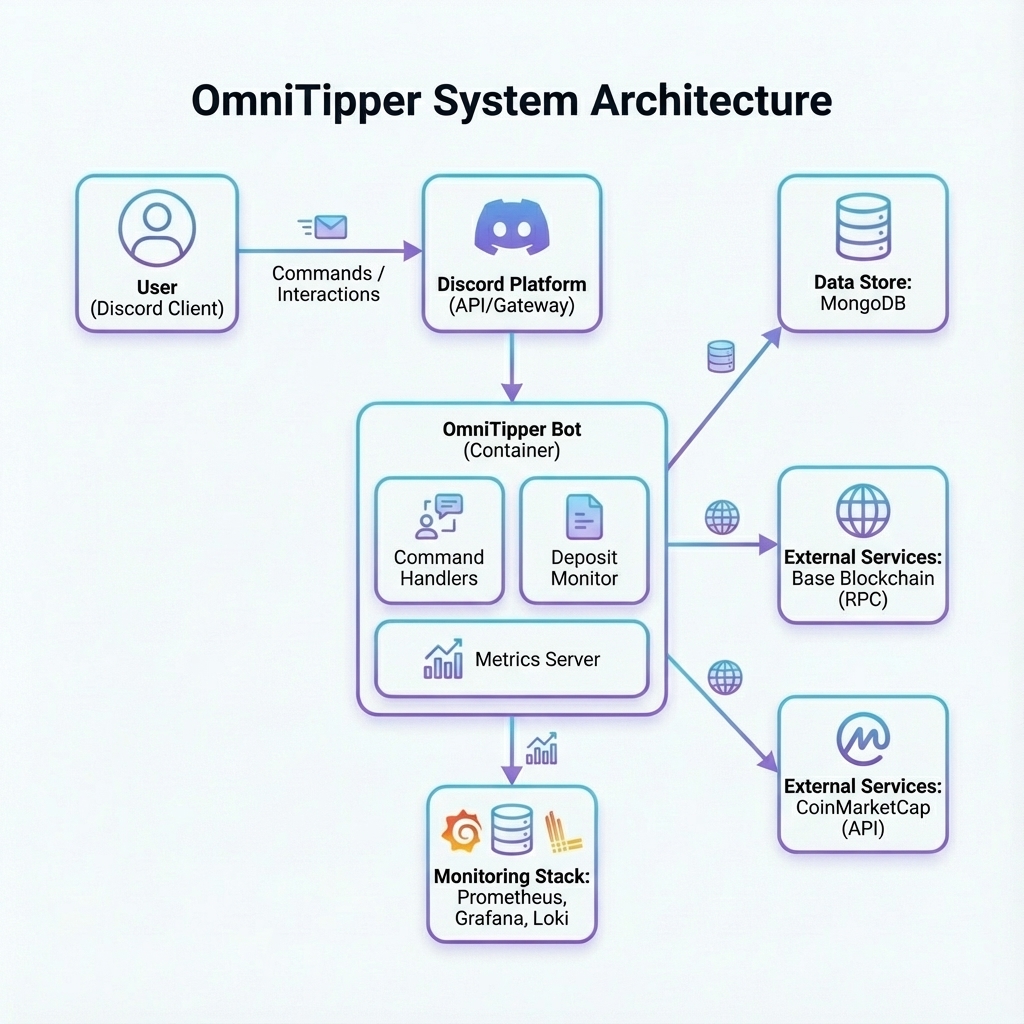
- Database: MongoDB for user balances, coin configurations, deposit addresses, and transaction history
- Web3: ethers.js for Base chain interactions
- Off-chain transfers: Tips are handled internally in the database (no gas fees)
- On-chain operations: Withdrawals and deposits interact with the Base chain
- Transaction History: Full audit trail of all financial operations stored in MongoDB
- Monitoring: Prometheus for metrics, Grafana for visualization, Loki for log aggregation
- Fees: 0.1% fee on deposits and withdrawals, transparently tracked and displayed
Operations & scaling
Operational behavior added for higher Discord scale (seedocs/ for runbooks and SLOs):
- Per-user rate limiting —
!commands enforce a per-user sliding window (src/utils/rate-limiter.ts).
src/bot.ts (tip, withdraw, deposit, balances, help,
suggestion, report, admin); unknown command keys fall back to a default bucket so new commands
cannot bypass throttling.
- Admin command scoping — when both
ADMINGUILDIDandADMINCHANNELIDare set,!adminis only
!admin works anywhere the user is already authorized (legacy behavior).
- Deposit monitor chunking —
DEPOSITCHECKUSERBATCHSIZE(0= scan all eligible users per tick;
>0 = round-robin chunk per tick). The cursor is persisted in the depositMonitorState collection so
scans resume after a restart. Sized so eligibleUsers / batchSize × DEPOSITCHECKINTERVAL_MS stays
inside your acceptable detection latency.
- MongoDB pool sizing —
MONGODBMAXPOOL_SIZE(0= driver default) lets you raise pool size under
- Discord HA constraint — Discord allows one active gateway session per bot token; do not run two
restart: unless-stopped + active/passive failover. See
docs/runbooks/high-availability.md.
- Tenancy — one global wallet and coin allowlist per deployment; balances are keyed by Discord user ID
omnitipper*): depositmonitorbatchusers,
depositmonitoreligibleusers, depositmonitorchunkedmode, discordgatewayup, discord_guilds,
discordguildchannels. Alert rules live in prometheus-alerts.yml; SLO targets
are in docs/monitoring/SLOs-and-alerts.md.
Important Notes
⚠️ Security:- Never share your
.envfile or commit it to version control - Keep your wallet private key secure
- The bot wallet should only hold funds needed for withdrawals
- Private keys are encrypted in the database using AES-256-GCM
- Use a strong, random
ENCRYPTION_KEY(at least 32 characters) - Store the encryption key securely and never lose it (you cannot decrypt without it)
- Each user gets one deposit address that works for all tokens (ERC20s and native ETH)
- The same address can receive any supported token
- ERC20 tokens: Automatically transferred to bot wallet and credited to your account
- Native ETH: Credited to your account but stays on the deposit address for gas fees
- Native ETH is needed on the deposit address to pay for gas when transferring ERC20 tokens
- Users receive automatic DM notifications when deposits are confirmed
- 0.1% fee is deducted from all deposits (transparently shown in notifications)
- 0.1% fee applies to all deposits and withdrawals
- Fees are transparently displayed in transaction notifications
- Fee amount is tracked in transaction history for accounting
- Fees stay in bot balance (not sent anywhere)
- Minimum deposit/withdrawal: $1 USD (or 100 tokens if USD conversion unavailable)
- Deposits and withdrawals below the minimum threshold will be rejected
- Configure via
MINDEPOSITTHRESHOLDUSDandMINDEPOSITTHRESHOLDTOKENSenvironment variables - Users will be notified if their deposit/withdrawal is below the threshold
- Uses CoinMarketCap API (requires API key)
- Get your API key from
- Prices are cached for 1 minute to reduce API calls
- Three log levels: ERROR, WARN, INFO
- Configure via
LOG_LEVELenvironment variable (default: INFO) - Two log formats:
text(default) orjson(Loki-compatible) - Set
LOG_FORMAT=jsonfor structured JSON logs compatible with Loki - Optional file logging via
LOGTOFILE=true - Logs are written to
./logs/directory (separate files for errors) - Log files are automatically created with date stamps
- Prometheus metrics exposed on port 9090 (configurable via
METRICS_PORT) - Grafana and Loki available via Docker Compose for full observability stack
- Promtail configured to automatically scrape and parse logs (supports both text and JSON formats)
- Transaction history tracked for all deposits, withdrawals, and tips
Project Structure
src/
├── bot.ts                       # Main bot entry point: Discord client, command router,
│                                #   deposit monitor loop, rate limiter wiring
├── commands/                    # Command handlers
│   ├── admin.ts                 #   !admin (gated by admin-command-context)
│   ├── balances.ts
│   ├── deposit.ts
│   ├── help.ts
│   ├── reaction-tip.ts          #   Reaction-based tipping
│   ├── report.ts                #   !report -> admin DM
│   ├── suggestion.ts            #   !suggestion -> admin DM
│   ├── tip.ts
│   └── withdraw.ts
├── database/                    # MongoDB models and connection
│   ├── connection.ts            #   MongoClient (honors MONGODBMAXPOOL_SIZE)
│   └── models.ts                #   Collections incl. depositMonitorState cursor
├── services/                    # External services & ops
│   ├── metrics.ts               #   Prometheus metrics (omnitipper_*) singleton
│   ├── metrics-server.ts        #   /metrics HTTP endpoint
│   ├── price.ts                 #   CoinMarketCap price conversion
│   └── web3.ts                  #   Base chain (ethers.js) interactions
├── types/
│   └── index.ts
└── utils/                       # Cross-cutting helpers
    ├── admin-command-context.ts #   ADMINGUILDID/ADMINCHANNELID gating
    ├── encryption.ts            #   AES-256-GCM for deposit private keys
    ├── env.ts
    ├── fees.ts                  #   0.1% fee math
    ├── logger.ts                #   text/json logging (Loki-compatible)
    ├── rate-limiter.ts          #   Per-user sliding window with default bucket
    └── threshold.ts             #   MINDEPOSITTHRESHOLD_* enforcement
docs/
├── architecture-tenancy.md
├── compliance/
│   ├── SUPPORT.md
│   └── TERMS-AND-PRIVACY-template.md
├── monitoring/
│   └── SLOs-and-alerts.md
└── runbooks/
    ├── high-availability.md
    └── mongodb-backup-restore.md